January 11, 2026
Getting Started with InventoryQuant
A comprehensive guide to effectively utilizing InventoryQuant—from your first upload to downloading a polished, insurance-ready inventory spreadsheet.
Whether you're new to InventoryQuant or looking for a quick refresher, this guide walks you through the essential steps to make the most of the platform. Follow these best practices to ensure smooth processing and accurate results.
File Naming
Properly name the files you want to upload. This might include the client name and the date of loss. Good naming conventions help you stay organized and find inventories quickly later.
- If there are multiple files to upload for the same client, name them appropriately (e.g., Johnson 6/12/25 #1, Johnson 6/12/25 #2).
- Consider including location identifiers for multi-property claims.
Processing
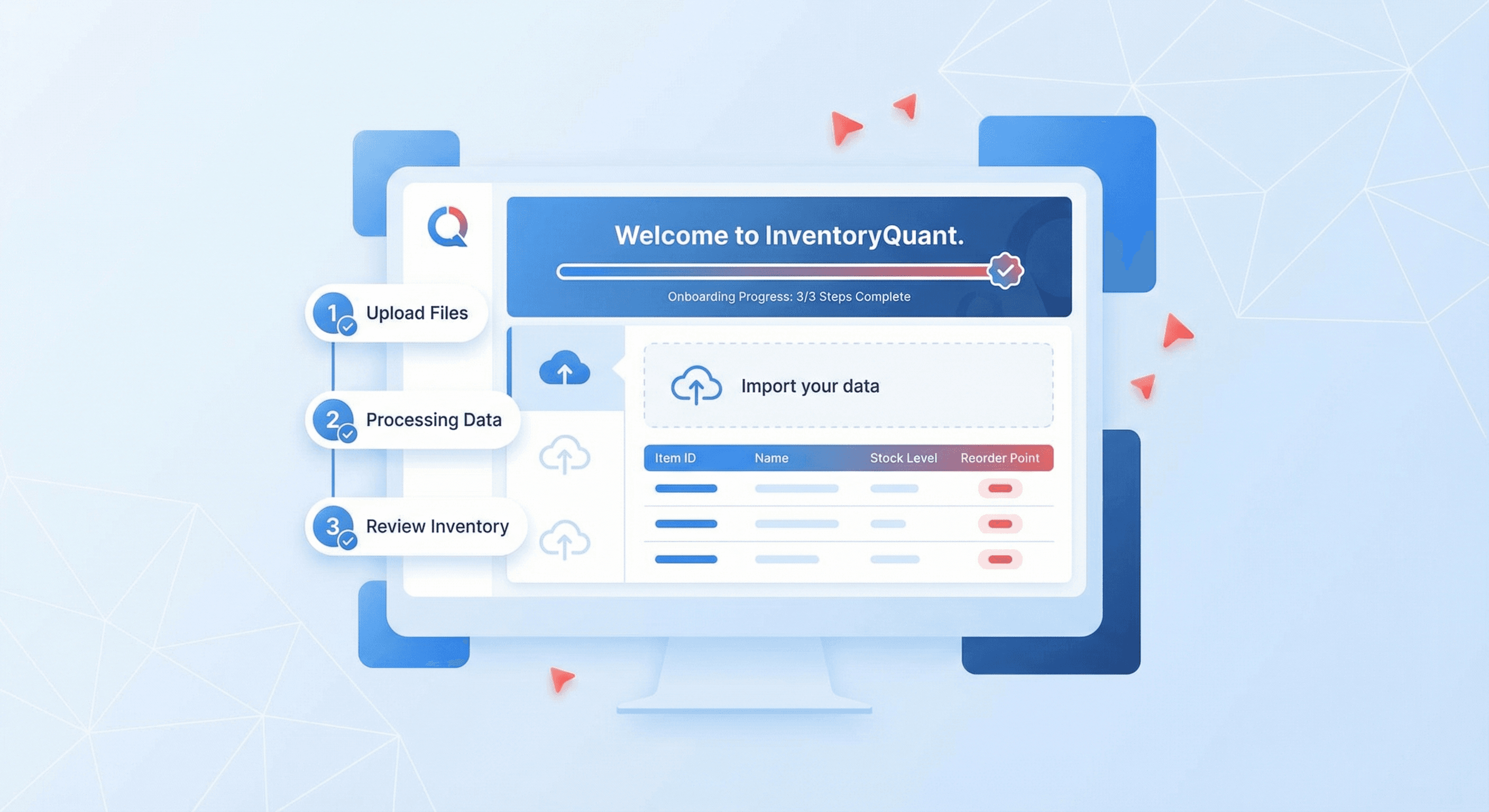
After uploading your file(s), be patient while the file is processed. Depending on the size and quantity of files, processing can take up to 30 minutes for large inventories with 1500+ line items.
You'll receive an email notification when processing is complete, and you can also monitor progress directly on the dashboard.
Reviewing and Editing Pricing
Once your file(s) have been processed, review and edit the pricing by clicking the See Full Inventory button on the Dashboard. The Full Inventory Page gives you complete control over every line item.
For detailed instructions on working with the inventory table, see our Full Inventory Page Guide.
Color Coding and Highlight Legend
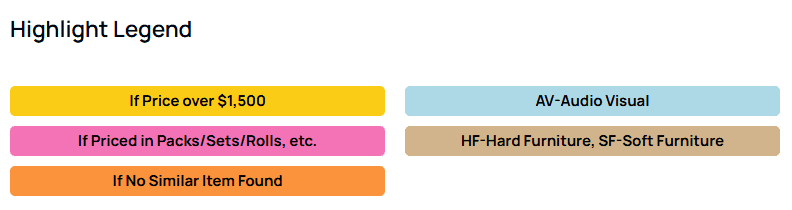
We've included color coding to help you identify items that may need additional review. This Highlight Legend also appears on the Standard Download (spreadsheet) option, making it easy to spot items requiring attention.
Downloading Your Spreadsheet
Once you're satisfied with your pricing selections, click the Export Data button to download your priced inventory list in spreadsheet or PDF format. You can then manipulate the spreadsheet as needed to prepare it for client review or insurance submission.
Making Updates
You can always return to the Full Inventory Page to make additional pricing selections and then download the updated result. This will not incur any additional charges—you only pay once for the initial processing.
Important Note:
Each time you upload a file—even if you previously uploaded the same file—you will incur the normal processing charges. Make sure to double-check your files before uploading.
Next Steps
Now that you understand the basics, explore our other guides to master every aspect of InventoryQuant:
Questions? Contact us at support@inventoryquant.com.