December 21, 2025
Configuring Team Accounts
InventoryQuant's team features let you collaborate efficiently with colleagues. Learn how to set up your team, invite members, and manage permissions.
Whether you're a small adjusting firm or a large enterprise, InventoryQuant's team accounts help you stay organized. Team owners can oversee all work done by members, share billing, and ensure consistent workflows across your organization.
Accessing Team Settings
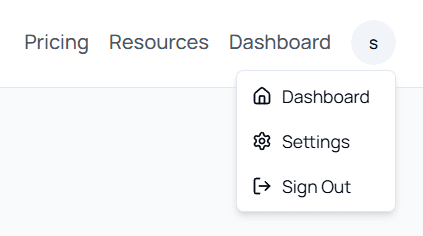
To configure your team, navigate to the Team Settings page:
- Click on the circle icon with the first letter of your email address in the top right corner
- Click Settings
- Scroll to the Team section at the bottom of the page
Inviting Team Members
At the bottom of the Settings page, you'll find the team invitation form. Enter the email address of the person you want to invite and select their role.

It doesn't matter if the invitee already has an InventoryQuant account. They'll receive an email with instructions to join your team.
Understanding Team Roles
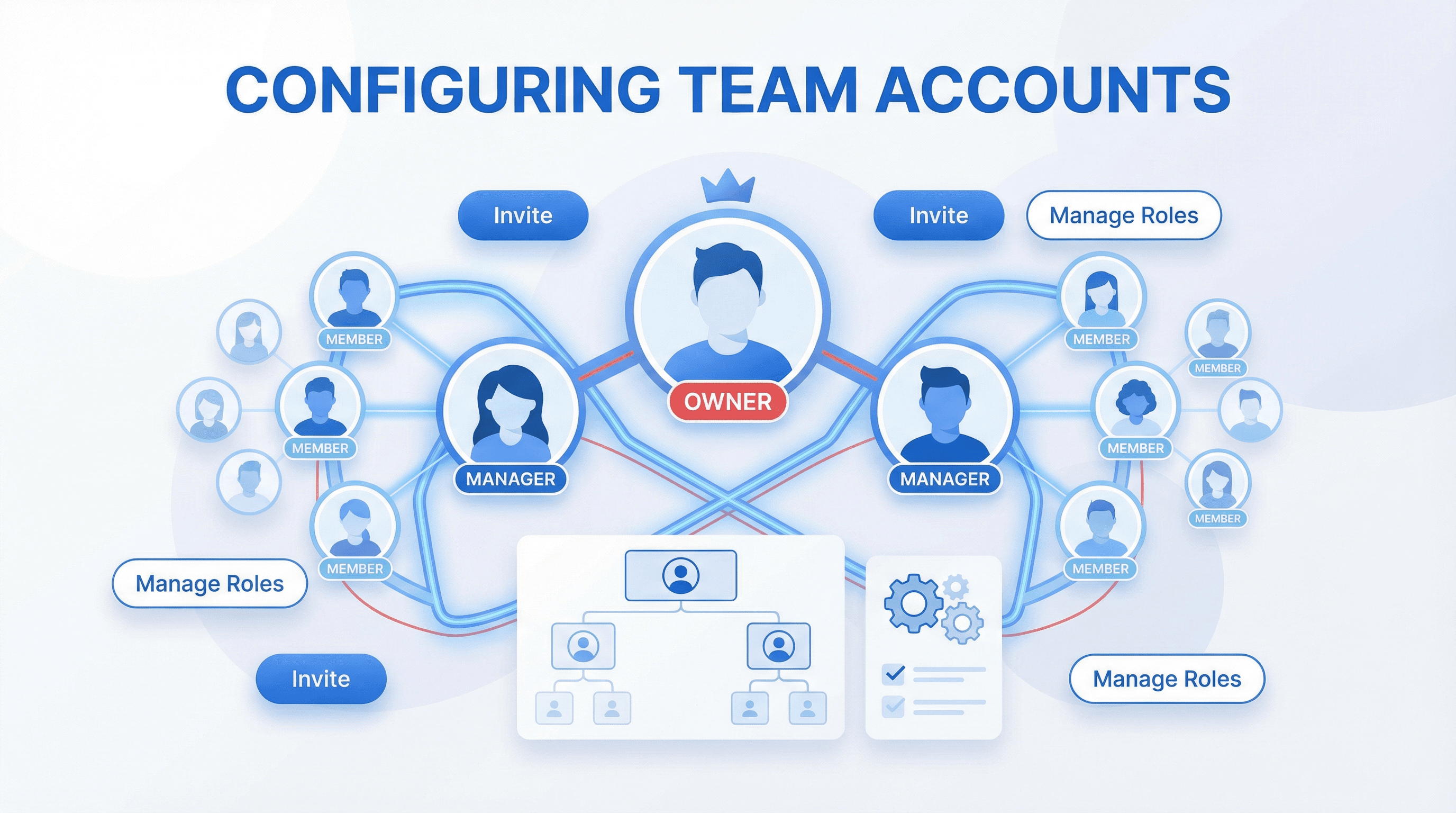
InventoryQuant offers three role levels, each with different permissions:
Owner
Full control over the team and all its resources.
- Invite and remove team members
- Update billing information
- View all team members' uploaded files
- Transfer ownership to another user
Manager
Administrative access without ownership transfer capability.
- Invite team members
- Update billing information
- View all team members' uploaded files
Member
Standard access for day-to-day inventory work.
- Upload and process files
- View and edit their own inventories
- Access shared inventories
Important: If you invite someone as an Owner, ownership will transfer to them upon accepting the invitation. Use this option carefully—it's intended for transferring account ownership, not for granting admin access (use Manager for that).
Benefits of Team Accounts
- Centralized billing: One account pays for all team members' usage
- Visibility: Managers and owners can see all team inventories
- Easy collaboration: Share inventories within your team effortlessly
- Flexible permissions: Assign roles based on responsibility levels
Common Questions
Can members see each other's inventories?
By default, members can only see their own inventories and inventories explicitly shared with them. Managers and owners can view all team inventories.
How do I remove someone from my team?
Go to Team Settings and click the remove button next to the team member you want to remove. Only owners and managers can remove team members.
What happens to inventories when someone leaves the team?
Inventories created by a team member remain accessible to the team even after that member leaves. The inventories are not deleted.
Ready to build your team? Head to your Settings page to get started.