December 28, 2025
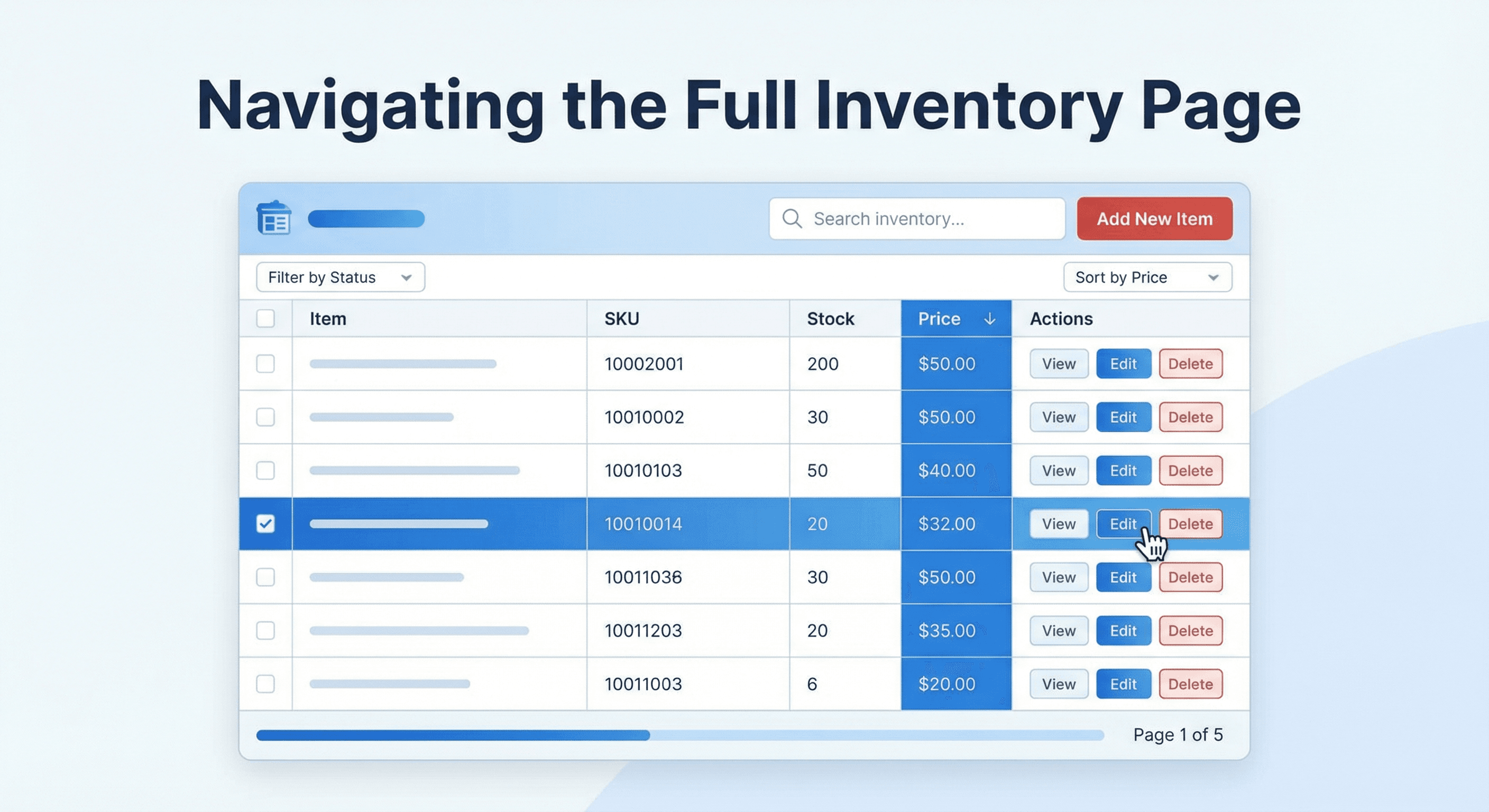
Navigating the Full Inventory Page
The Full Inventory Page is where you review, edit, and perfect your inventory before export. Master these features to work faster and produce better results.
Pro Tip: Review your inventory as soon as possible after finishing the site visit. Items will be fresher in your memory, making it easier to verify descriptions and select appropriate pricing options.
Overview
The Full Inventory Page is your command center for managing processed inventories. Here you can scroll through all line items, adjust pricing selections, add notes, and download your final spreadsheet or PDF report.
Adding More Files
Need to add more items to an existing inventory? Use the Add Files button to upload additional audio, video, or spreadsheet files. The new items will be processed and integrated into your existing inventory list.
Note that newly added files won't be automatically priced. Once processing completes, use the Price Items button to price the new items—it won't reprice items that already have pricing.
Adding Individual Line Items and Locations
You can add individual line items and new locations (rooms or areas) directly from the inventory table. This is useful when you need to add a few manual entries—for example, electrical work, labor, or items tied to a specific room like a powder room—without uploading another file.
Adding a line item
Click the three-dot menu on any row, then choose Insert item above or Insert item below. A new row is added with the same location as the row you clicked; you can then click into the description, quantity, and code cells to edit them. Use Price this item from the same menu when you're ready to get pricing for the new line.
Adding a new location
To start a new location (e.g., a new room or area like "POWDER" or "Kitchen"), click the three-dot menu on a row and choose Insert location above or Insert location below. A Create New Location dialog appears—enter the location name and confirm. All items from that point downward within the current location block are moved under the new location name, so you can keep line items grouped by room or area.
Claim Details
Click the Claim Details button in the top left to enter and edit important claim information. This data will appear in your exported reports.
Claim details include:
- Loss description (used to improve pricing accuracy)
- Insured property state/province (used for tax calculation)
- Insured home address
- Estimator information
- Other relevant claim details
Changes to claim details are automatically saved as you type.
Selecting the Best Price
After pricing, each line item has multiple pricing options available. To view and select options:
- Click the Select Price button in the Edit Price column
- Review the dropdown showing all available pricing options
- Each option shows the link description, price, and thumbnail
- Click the green Select button next to your preferred option
Selecting a price automatically updates the Unit Price, Link, Link Description, Thumbnail, and the Price Total at the top of the page.
Repricing Items
Need more pricing options for a specific item? Click the blue Reprice button in the Unit Price column to generate additional options.
Note: Repricing individual items incurs additional pricing charges. Only reprice items when you need more options beyond what was initially provided.
Sharing Inventories
Collaborate with team members by sharing your inventory. Click the Share button and enter the email address of the user you want to share with.
- Shared users must have an InventoryQuant account
- Shared users can view and edit the inventory
- Only the inventory owner can share with additional users
- View all users with access in the sharing dialog
Using the Comment Box
Leave notes, reminders, or comments on any line item by clicking the Comment box on the left side of the item row. These comments appear in your downloaded spreadsheet or PDF.
Common comment examples:
- "Review quantity with client"
- "Get pricing assistance from client"
- "Verify brand name"
- "Photo reference needed"
Understanding the Columns
Time Stamp
For audio and video inventories, this column shows the timestamp from the recording that corresponds to each line item. Use this to quickly jump to the relevant section of your recording if you need to verify details.
Link
Click the link for any line item to open the supporting documentation in a new tab. This takes you directly to the product page or source used for pricing.
Item Thumbnail
The thumbnail shows an image of the currently selected pricing option. Use this as a visual reference when selecting the best replacement item—it helps ensure the selected product matches what was actually lost.
Ready to Export?
Once you've reviewed and adjusted your inventory, click Export Data to download in your preferred format: IQ Spreadsheet, XactContents import template, or PDF Report.
Learn more about getting started in our Getting Started Guide.