January 18, 2026
Introducing Video Inventories
Video inventories are the natural evolution of audio inventories. If you already know how to take a good audio inventory, you already know almost everything you need to know to take a great video inventory.
At a high level, the process is simple: instead of recording only your voice, you record a video while you inventory the loss. You describe items the same way you always have. When you're done, you upload the video file to InventoryQuant, and we handle the rest.
What Is a Video Inventory?
A video inventory is exactly what it sounds like: a continuous video walkthrough of a loss where you visually point at items and describe them out loud as you go. You can use a phone, smart glasses, or any other device that records video.
The key idea is that you inventory the loss the same way you always have—you just capture video at the same time.
There's no need to stop and take individual photos, no typing, and no switching between tools. One continuous recording captures everything.
How to Take a Video Inventory
1. Use the Same Best Practices as Audio Inventories
All of the guidance that applies to audio inventories still applies here. Be clear, be consistent, and describe each item fully. Your spoken descriptions are what allow the system to accurately identify, separate, and document each item.
If you know how to take a solid audio inventory, you're already most of the way there.
2. Focus on One Item at a Time
There is one additional rule that's especially important for video inventories.
When you move to a new item, bring the camera to the item first, hold it steady, and then begin describing it.
Avoid starting your description before the item is in view. If the description begins too early, it can be difficult to extract a clean, high-quality frame of the correct item.
The correct flow looks like this:
- Move the camera to the item
- Hold steady so the item is clearly visible
- Start describing the item
- Move on to the next item and repeat
This simple habit dramatically improves accuracy.
3. Upload the Video When You're Done
Once the walkthrough is complete, upload the video file to InventoryQuant.
From there, the system automatically processes the video and turns it into a structured, insurance-ready inventory.
What InventoryQuant Does Automatically
Once your video is uploaded, InventoryQuant handles the hard parts:
- Extracts a representative image for each item
- Associates each spoken description with the correct frame
- Identifies the specific item being described, even when multiple items appear in the same image
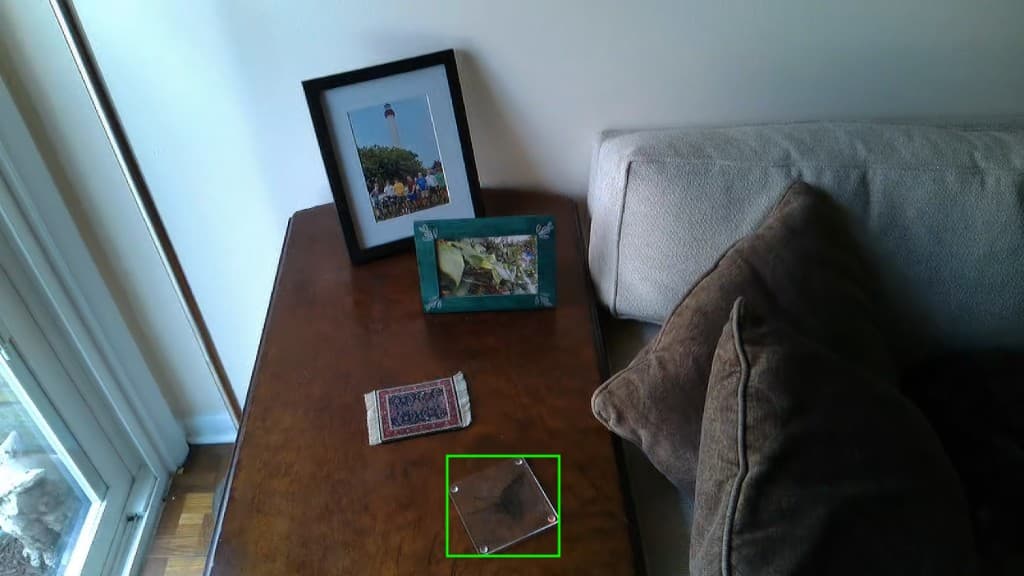
- Draws a bounding box around the relevant item, clearly showing what the description refers to
This means you don't have to worry about framing each item perfectly or isolating it manually. The system does that for you.
Capturing Multiple Images of the Same Item
Sometimes a single image isn't enough. You may want multiple angles, close-ups, or specific details like a SKU or barcode.
InventoryQuant supports this directly during video capture.
While recording, simply move to a new angle and say things like:
- "Take a picture here."
- "Front view."
- "Side view."
- "Top view."
- "Here's the SKU."
- "Here's the barcode."
The system recognizes these cues and captures additional frames, attaching them to the same item in the final inventory.
Why Video Inventories Work
Video inventories combine the speed of audio with the visual proof of photos—without the usual tradeoffs.
You spend less time on site, capture better documentation, and eliminate the need for manual photo-to-item matching after the fact.
Most importantly, video inventories fit naturally into how adjusters already work. There's no new workflow to learn—just a better way to capture it.
Getting Started
If you can take an audio inventory, you can take a video inventory.
Record a walkthrough, describe items clearly, focus on one item at a time, and upload the video to InventoryQuant. We'll turn it into a clean, structured, insurance-ready inventory.
Learn more at inventoryquant.com.