

GuideMay 12, 20263 min read
Selecting Speakers
If your uploaded audio is flagged for multiple speakers, choose the best processing option so your inventory extraction is accurate.
When InventoryQuant detects multiple speakers in an uploaded audio file, processing pauses and asks you to choose a speaker mode. In your claim's Files tab, locate the flagged recording and pick one of the options below.
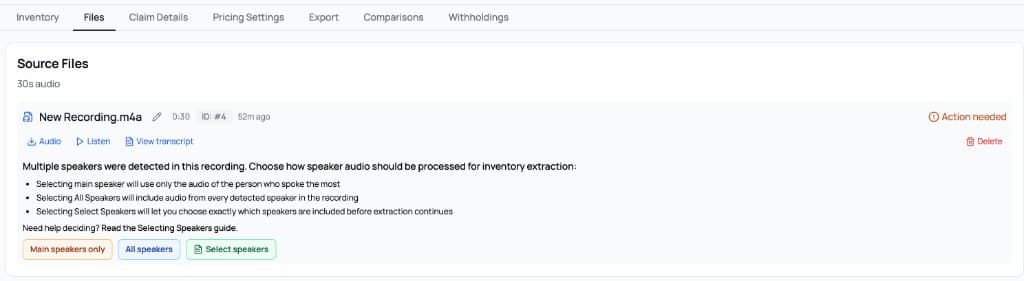
Multi-speaker audio review prompt in the Files tab
1. Main Speaker Only
Click Main Speaker Only when one person did most of the inventory dictation and other voices were mostly side conversation or support.
This option keeps the primary speaker (the most active/loudest speaker) and filters out the rest before extraction resumes.
2. All Speakers
Click All Speakers when multiple people were intentionally calling out inventory items.
This processes and merges inventory content from every detected speaker, which is useful when teammates are documenting different rooms or items at the same time.
3. Select Speakers
Click Select Speakers when you need precise control over whose audio is included.
- Open the transcript view from the flagged file.
- Toggle the speaker chips you want to include.
- Click Process Selected Speakers.
Speaker numbers are ranked by speaking time, so Speaker 1 is the person who spoke the most.
After you choose an option, processing restarts automatically and your inventory extraction continues with that speaker setting.
Need a refresher on recording quality? Read Best Practices for Audio Recording.