

Best PracticesMay 6, 20264 min read
How to Review Your Inventory
Before you send an inventory to a homeowner or the insured, there are a few aspects you should review.
There are two rounds of review: one before you run pricing, and one after. The order matters—cleaning up items first leads to better pricing results, and reviewing after ensures nothing slips through with a missing or inaccurate value. For each step, use the Review checklist or the Filters tab in the inventory toolbar to isolate the items that need attention.
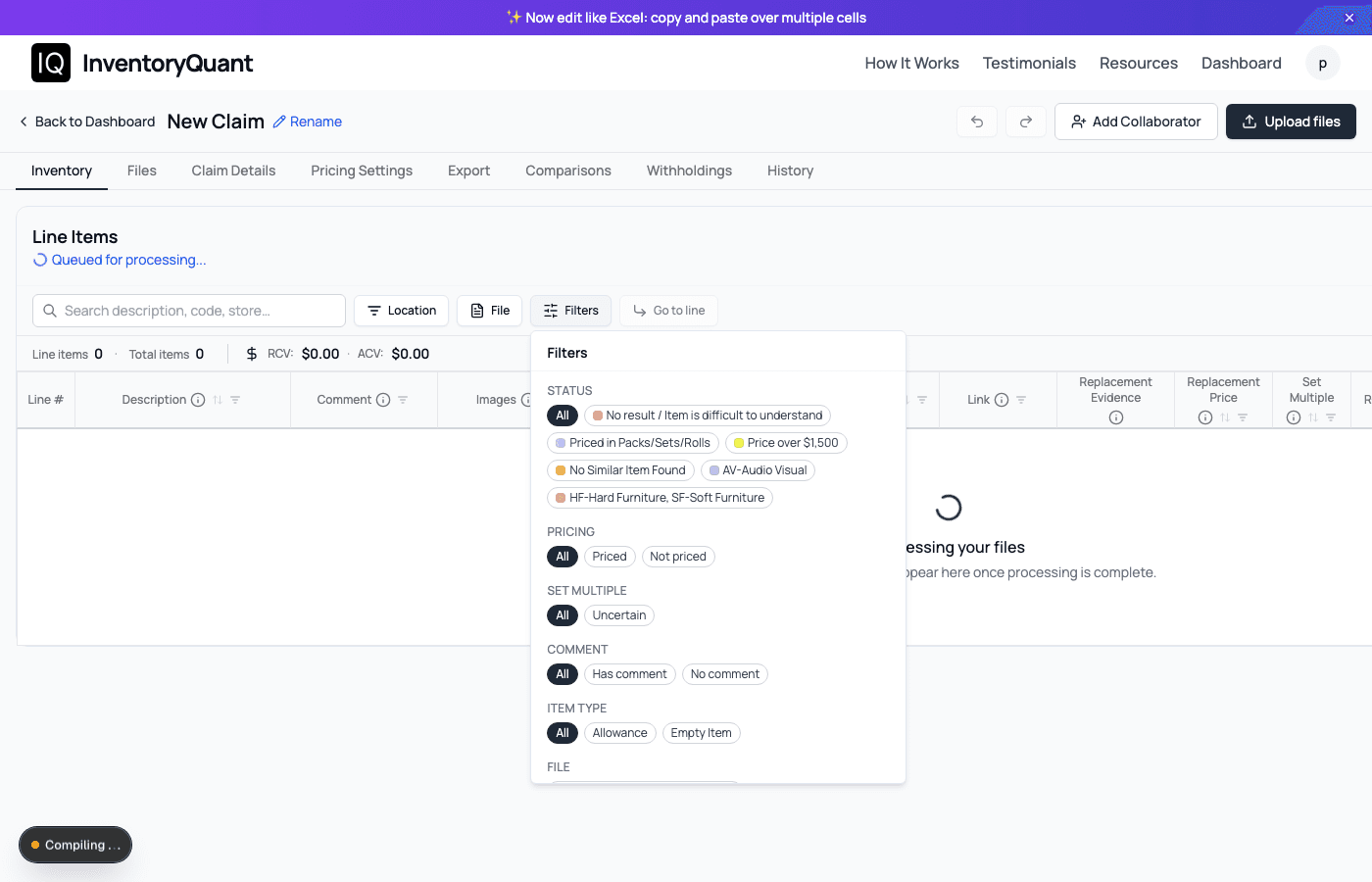
The Filters panel — accessible from the inventory toolbar
Items with Comments
Comments on an inventory line item are flags—they indicate something is unresolved, uncertain, or in need of clarification. Before running pricing, every comment should be addressed.
Common reasons comments appear include conflicting details between the spoken description and the image, ambiguity about condition or quantity, or notes left by your team during initial processing.
Go through each commented item and either resolve the issue directly in the line item, or remove the comment once it's been addressed. Cleaning up comments before pricing ensures the AI has the most accurate descriptions to work from.
Use the Has comment filter to isolate these items quickly.
Potential duplicate items
Sometimes inventory takers accidentally say the same line item twice.
Before you run pricing, open the Review checklist in the inventory toolbar and select Potential duplicate items. That applies a filter so you only see lines that sit next to each other in default line order and have matching or overlapping descriptions.
For each pair, decide whether to merge lines, delete a duplicate, or clarify the description so only one accurate line remains.
Empty items
Lines with no description—or the literal phrase empty item—are placeholders. They should not go to pricing until you either describe the loss, merge into another line, or delete the row.
In the inventory toolbar, open Review and choose Empty items to filter to only those lines.
Miscellaneous
Walkthroughs sometimes produce a catch-all "miscellaneous" line (often abbreviated as miscl in the description). Those rows usually need to be split into specific items or re-labeled before pricing so each line is clear and defensible.
Use Review → Miscellaneous to filter lines whose descriptions contain that substring.
Allotments & assortments
Descriptions that mention allotment or assortment often describe bulk or grouped goods. Confirm quantities, how they map to replacement sourcing, and whether the line should stay bundled or be broken out.
Use Review → Allotments & assortments to find those rows before pricing.
Location not mentioned
Pricing performs better when each line item has a location attached. Blank locations make room-level review harder and can create confusion when adjusters or carriers audit the inventory.
Use Review → Location not mentioned to isolate rows where the location field is blank, then assign the correct room before pricing.
Unknown items
Any line whose description contains unknown signals missing identification. Replace vague wording with concrete detail (brand, type, dimensions, what was visible in the recording) so pricing can find a comparable.
Use Review → Unknown items to isolate them.
Items with No Pricing Found
Every line item should have an associated replacement value. When pricing comes back empty, it usually means one of a few things: the item description was too vague, the product is discontinued or obscure, or it simply wasn't captured clearly enough during the walkthrough.
Work through unpriced items one by one. For each one, ask: Is the description specific enough for a researcher to find a comparable product? If not, add the brand, model, approximate age, or any visible details from the images.
For rare or unusual items, you may need to source pricing manually—auction records, manufacturer websites, or specialty retailers are good starting points.
To quickly understand why a specific item wasn't priced, hover over the IQ Analysis column for that row. The tooltip will show the system's reasoning—whether it couldn't find a comparable product, the description was too vague, or another issue prevented pricing.
Use the Not priced filter or the No result / Item is difficult to understand status filter to pull up only the items that need attention.
Items with no depreciation value
If an item has a replacement price but no depreciation value, your export is still incomplete. Depreciation should be reviewed manually because condition and age can materially change ACV.
Use Review → No depreciation to isolate those rows. You can use Resolve to apply an estimate in bulk, but still manually verify the resulting values.
Items with no age value
Age is a key input to depreciation. If age is missing, the system may not have enough context for a defensible ACV calculation.
Use Review → No age to find these rows. Resolve can estimate age in bulk, but review each estimate manually before final export.
Art
Art is one of the most frequently undervalued categories in a claim inventory. Original paintings, sculptures, prints, and other works require specialized appraisal—replacement cost data from standard retail sources will rarely be accurate.
Pull every art item in the inventory and review it separately. For each piece, confirm you have at minimum a clear frontal image, the artist name if visible or known, approximate dimensions, and any signature or provenance details captured from the recording.
For any significant works, recommend a formal appraisal. Carriers scrutinize art claims closely, and a well-documented appraisal is far more defensible than a price sourced from a generic search.
Use the category code filter and select W — Wall hangings to isolate art items. This code covers paintings, prints, lithographs, sculpture, stained glass, tapestries, and similar works.
Items with an Uncertain Set Multiple
When pricing runs, it automatically calculates a Set Multiple — the conversion factor between the replacement item found online and the quantity in your inventory. In some cases the system flags the Set Multiple as uncertain, meaning it wasn't able to confidently determine the right conversion.
Common causes include pack sizes that are ambiguous in the product listing, or items where the quantity relationship between what was lost and what's available for purchase online isn't clear. These items are worth a manual review to make sure the Replacement Price in the export reflects the correct per-unit cost.
Use the Uncertain filter under Set Multiple to find these items. Click the Set Multiple cell to override the value if you know the correct conversion. For a full explanation of how Set Multiple works, see the Set Multiple article.
Anything Over $200
High-value items deserve individual attention regardless of category. Filter your inventory for any line item priced above $200 and review each one for documentation quality.
For each high-value item, confirm the description is specific and accurate, there is at least one clear image, the pricing source is reliable and comparable, and the condition is noted if it affects value.
If an item is significantly above $200—electronics, jewelry, appliances, furniture—consider whether serial numbers, model numbers, or receipts are available to strengthen documentation. These are the items carriers will look at most carefully, so treat them accordingly.
Use the Min price filter and set it to 200 to see only high-value items.
Collectibles
Collectibles are another category that standard retail pricing frequently gets wrong. Trading cards, coins, memorabilia, figurines, vintage toys, and similar items often have market values that fluctuate significantly and don't reflect what you'd find on a mainstream retail site.
For collectibles, the replacement price should reflect current market value — check recent sold listings on eBay, auction house results, or specialist dealers rather than relying on retail search results alone.
Use the category code filter and select SH — Sports & Hobbies to surface collectibles alongside sporting goods and hobby items. Review the results and pull out any true collectibles for separate pricing research.
Designer Goods
Luxury and designer items often need extra scrutiny: counterfeit listings, outlet versus full-price channels, and seasonal collections can all skew automated pricing. What reads as a match online may not be the same tier of product as what was lost.
InventoryQuant flags likely designer or luxury items during pricing. Review those lines to confirm the replacement is truly comparable in brand, materials, and tier—and that documentation supports the value if the carrier asks.
Use the Designer filter under Filters (choose Designer instead of All) to show only items flagged as designer or luxury.
Review Checklist
Work through these in order using the Review button (recommended for preset filters) or the Filters tab:
- Before pricing
- 1.Items with comments — Review before running pricing so descriptions are accurate.
- 2.Potential duplicate items — Consecutive lines with the same or overlapping descriptions; merge or fix before pricing.
- 3.Empty items — No description or literal "empty item"; resolve placeholders before pricing.
- 4.Miscellaneous — Description contains "miscl"; split or clarify bundled lines.
- 5.Allotments & assortments — Description contains "allotment" or "assortment".
- 6.Location not mentioned — Location field is blank; assign a room before pricing.
- 7.Unknown items — Description contains "unknown", "unidentified", or "unidentifiable"; add specifics before pricing.
- After pricing
- 8.No pricing found — Add descriptive detail or source manually.
- 9.No depreciation — Has price but no depreciation value; manually review then apply estimate if needed.
- 10.No age — Has price but no age value; manually review then apply estimate if needed.
- 11.Art — Review separately and recommend appraisal for significant pieces.
- 12.Uncertain Set Multiple — Manually verify the conversion factor so Replacement Price is correct.
- 13.Anything over $200 — Verify description, images, pricing source, and condition.
- 14.Collectibles — Source pricing from sold listings or auction results, not retail search.
- 15.Designer goods — Use the Designer filter; verify comparable tier and documentation.
Learn more at inventoryquant.com.